Edit or delete cases
Cases can be edited or deleted by users with appropriate permissions.
Edit a case
|
|
- On the Assignments page, click the ellipsis button
 and select Edit to open the case.
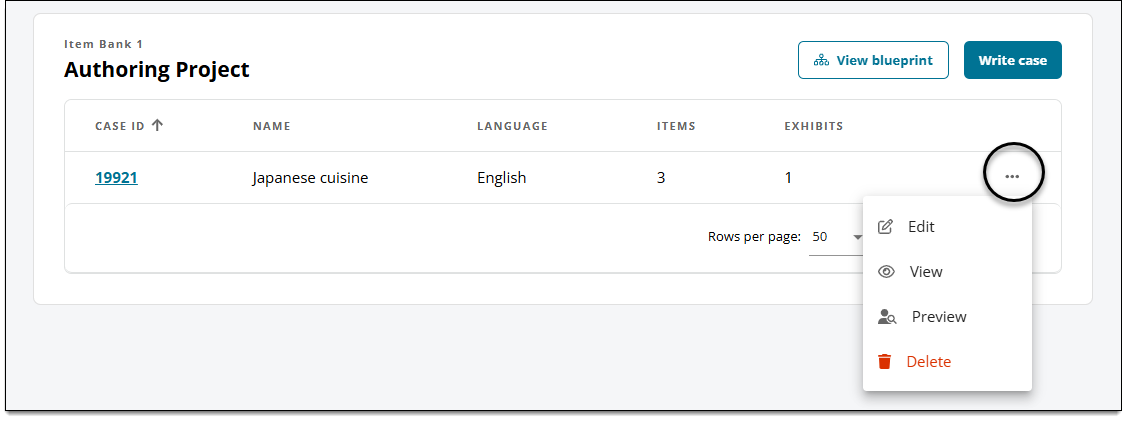
- The case is opened in the item editor.
- Click Case in the item settings panel
 .
.
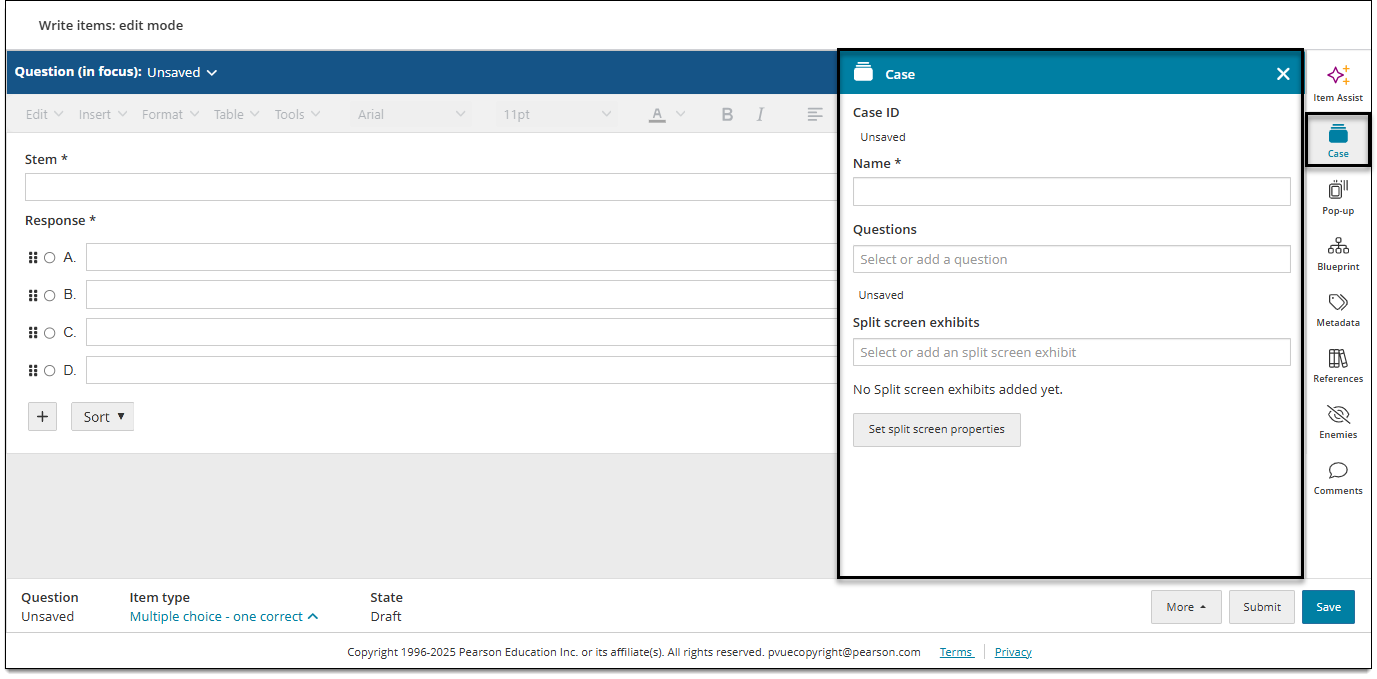
- You can now add or edit questions and exhibits.
-
 Only users with the Review Cases permission can edit the case name.
-
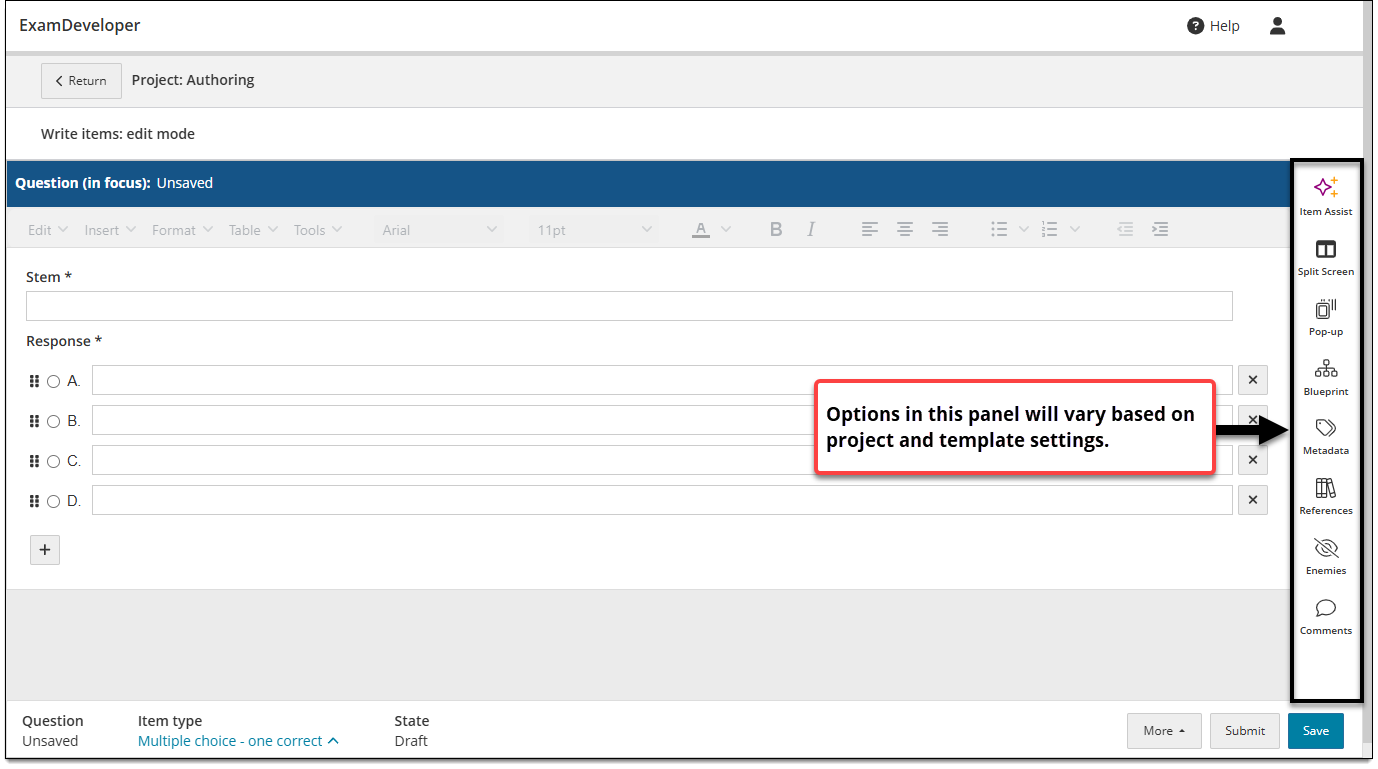
- Click Save in the lower-right corner of the page to save the case.
Delete a case
When you delete a case, you are not deleting the individual items and exhibits within the case. You are only deleting the case ID and the associated grouping of items and exhibits.
|
|
- Sign in through the Navigator portal.
- If this is your first time working on the project, you'll be asked to review the user license agreements.
- If you have access to multiple item banks and projects, you'll need to choose which item bank and project to launch.
- On the Assignments page, click the ellipsis button and select Delete.
- Click Yes in the confirmation pop-up.
- All items (including questions and exhibits) will become standalone items and the case grouping will be removed from the Cases page.